


 English
 Translate
F&Q
Exception Fixes
No ttyUSBx Serial Device After Opening Web Page on Linux
- This may be due to a missing serial driver. Please reinstall the CH34x driver using the following steps:
- Download the driver from the WCH official website (download link), extract it, and navigate to the
driverdirectory. - Run
uname -rto check your operating system's release version. Find the corresponding version in (this link) and copy the content intoch341.c. - Execute the
makecommand to compile the driver. - Run
sudo make loadto install the driver. - Replace the old driver:
cp ch341.ko /lib/modules/$(uname -r)/kernel/drivers/usb/serial/ch341.ko.
- Some Linux distributions come with
brltty, a Braille display tool that occupies the/dev/ttyUSB0serial port, causing the webpage to be unable to detect it. If you are not usingbrltty, it is recommended to uninstall it withsudo apt remove brltty.
No USB Serial (COMx) Device After Opening Web Page on Windows
This may be caused by a missing serial driver. Please reinstall the CH34x driver as follows:
- Download the driver from the WCH official website (download link), then double-click the installer to run it.
NanoKVM-USB Device Driver Not Installed on Windows Controlled End
This may be caused by the USB composite device not being recognized correctly. Please reinstall the driver as follows:
Open
Device Manager→Other devicesFind
NanoKVM-USB→ Right-clickProperties→Driver→Update Driver
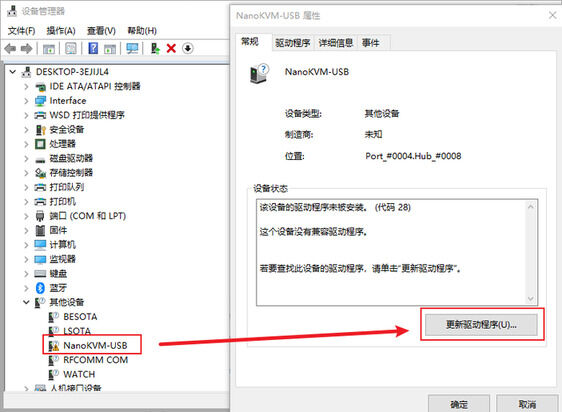
Select
Browse my computer for drivers→Let me pick from a list of available drivers on my computer
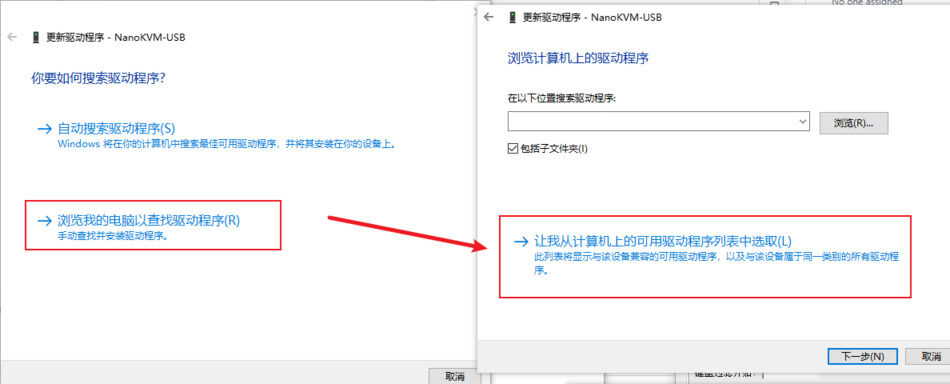
Double-click
Show all devices
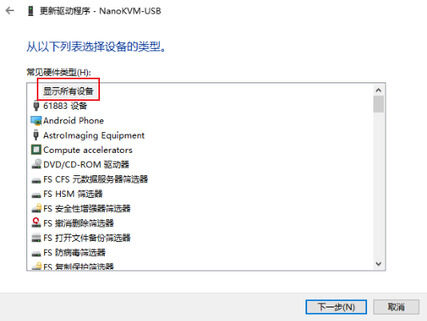
In
Standard USB Host Controller/Standard system devices, findUSB Composite Deviceand double-click to install
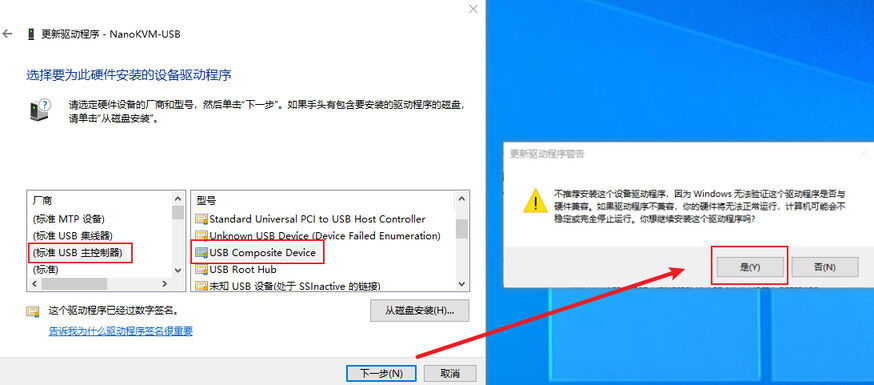
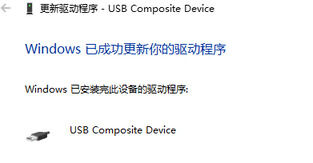
Note: The driver location may vary depending on the Windows version. Please search patiently.
Unable to Open NanoKVM-USB Corresponding Serial Device After Opening Web Page
- This may be due to other programs occupying the serial port. Please ensure it is not in use before trying again.
- Linux may lack permissions to open the serial port. Execute
sudo chmod 777 /dev/ttyUSB*in the terminal. - The Chrome browser may not have detected the serial port. Please refresh the webpage or restart Chrome.
- Chrome may lack sufficient permissions. Please grant the necessary permissions.
The serial port device cannot be found after connecting the device on the Mac Mini (Apple Silicon)
This is typically because the rear Thunderbolt ports and the front USB ports on newer Mac Minis use different controllers, resulting in varying compatibility with certain USB devices. The rear Thunderbolt ports may be more selective when handling legacy USB serial devices (CDC ACM), while the native USB-C ports on the front generally offer better compatibility.
Recommended Solutions:
- Use the front ports: Connect the device to the front USB-C port on the Mac Mini.
- Use a USB Hub: If you must use the rear ports, try connecting through a USB Hub, which usually resolves the detection issue.
Video Issues
Some Hosts Experience Abnormal Colors or Visual Artifacts in BIOS Display Output/Capture
- Early firmware of NanoKVM-USB may cause issues on certain BIOS systems, such as reddish display output, greenish capture colors, or visual artifacts. These problems can be resolved by flashing the new firmware. Please download the flashing software and firmware first:
Standard Edition: Firmware Download Link、Flashing Software Download Link
4K Edition: Firmware Download Link、Flashing Software Download Link USBVideoDownloadTool_V1.9.15.77.exe
- Flashing Steps:
- Open the software and select the downloaded firmware.
- Connect the USB-C port on the NanoKVM-USB Host end to your computer.
- Wait for the software to establish a connection, then click "Start Flashing" and wait for the process to complete.
Do not disconnect NanoKVM-USB during the flashing process, as it may brick the device.
Be sure to distinguish between the Standard Edition and the 4K Edition. The flashing software and firmware are different for each version.
The flashing software is only compatible with Windows.
Poor Video Quality
- First, check if you're using a USB 2.0 cable/HOST interface. When the resolution is high, USB 2.0 may not provide sufficient bandwidth, which can lower the video quality. It is recommended to use a USB 3.0 cable.
- At 2K resolution, the video quality may decrease due to the chip's encoding capability. Please switch to 1080P.
- If the target device is connected to a Windows host, go to System Settings > Display Settings > Advanced Display Settings, and change to 1080P60 in the "List all modes" section. Also, check if the "Desktop Resolution" and "Active Signal Resolution" are consistent.
DP-HDMI Adapter
- Some passive DP to HDMI converters only perform level conversion in their internal circuitry, resulting in poor compatibility with NanoKVM-USB. This manifests as the video signal not appearing when waking from sleep; the NanoKVM-USB still shows a black screen, requiring manual unplugging and replugging of the HDMI cable.
No HDMI Loop Out
- The beta version hardware only supports USB power from the HOST side. Please ensure proper power supply from the HOST side during use.
Loop Out Display
- The NanoKVM-USB uses its own EDID (Extended Display Identification Data) before connecting to the loop-out display. After connecting to the loop-out display, it switches to the EDID of the loop-out display.
- Since the EDID contains information about the display manufacturer and color settings, the resolution list in the Target system settings may appear different before and after connecting the loop-out display. Additionally, the color of the video captured via USB may vary before and after the connection.
Other
- If the above methods do not resolve the issue, please describe your purchased model and the encountered problem on the forum, GitHub, or QQ group, and we will respond patiently.
Known Issues
Latency
- The ARM version of macOS experiences increased latency when connected to a Raspberry Pi via NanoKVM-USB; other combinations are not affected.
Feedback Methods
- GitHub Issues
- MaixHub Forum
- QQ Group: 703230713