

 English
 Translate
ngscopeclient × Sipeed SLogic User Guide
Getting Started with Sipeed SLogic Analyzers on ngscopeclient: From Download to First Waveform
What is Sipeed SLogic
Sipeed SLogic is a series of high-performance, cost-effective USB logic analyzer hardware. This project integrates them with ngscopeclient — an open-source, cross-platform, GPU-accelerated GUI for oscilloscopes and analyzers — letting you use its powerful waveform visualization, protocol decoding, and automated testing capabilities to drive SLogic hardware.
ngscopeclient is now a single executable: download and run, with the connection, capture mode, and parameters all configured in the UI — no separate background program or command-line arguments needed.
| Key Information | Description / Details |
|---|---|
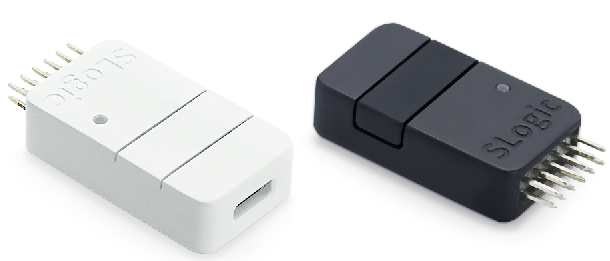
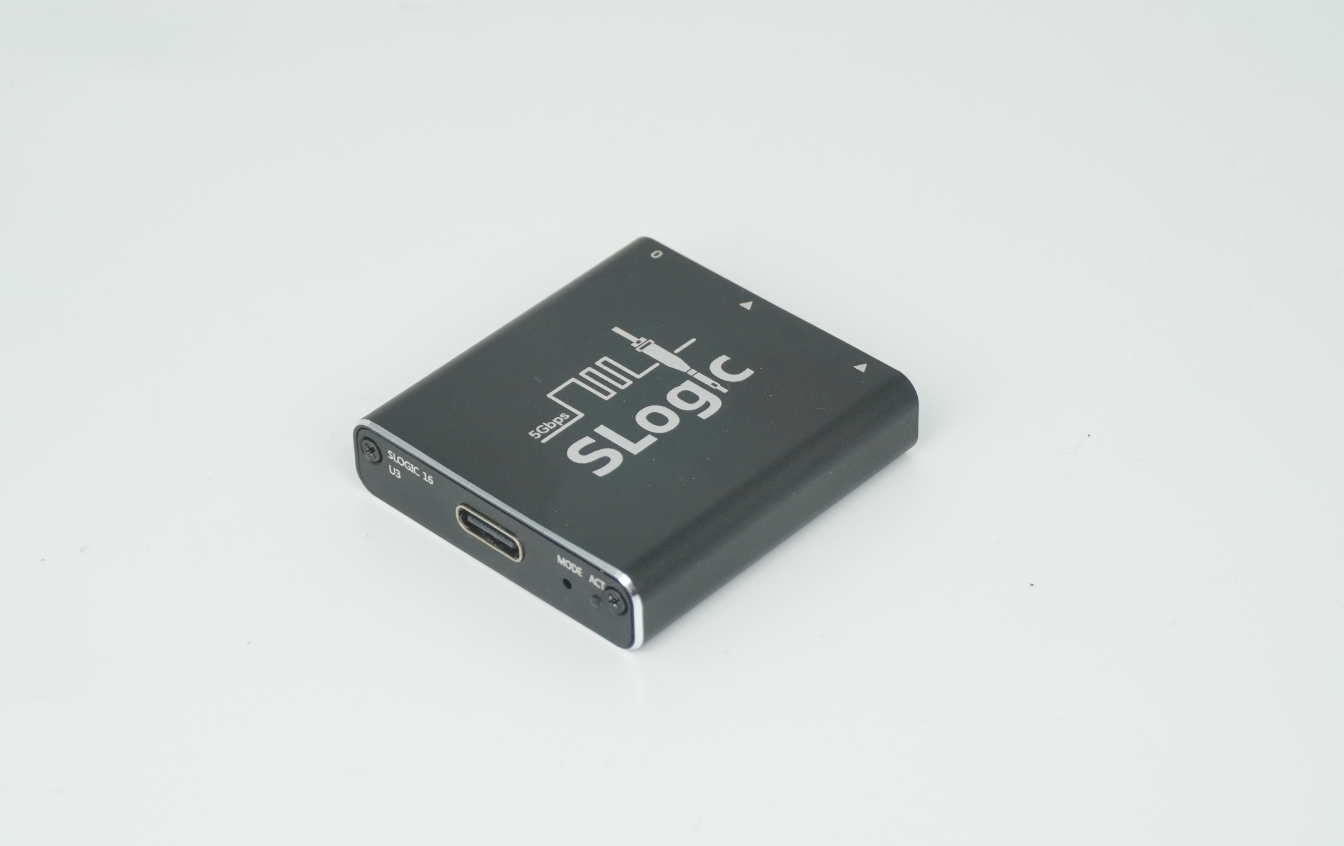
| Supported Hardware | SLogic Combo 8SLogic 16U3 (current mainstream)SLogic 32U3 (crowdfunding now; the primary focus of this project)Other third-party models are not yet included in the distribution. |
| OS Compatibility | Windows 10/11 x64, Linux x86_64, macOS — all three support download-and-run |
| What You Need | A single portable executable — no system-level installation, download and run |
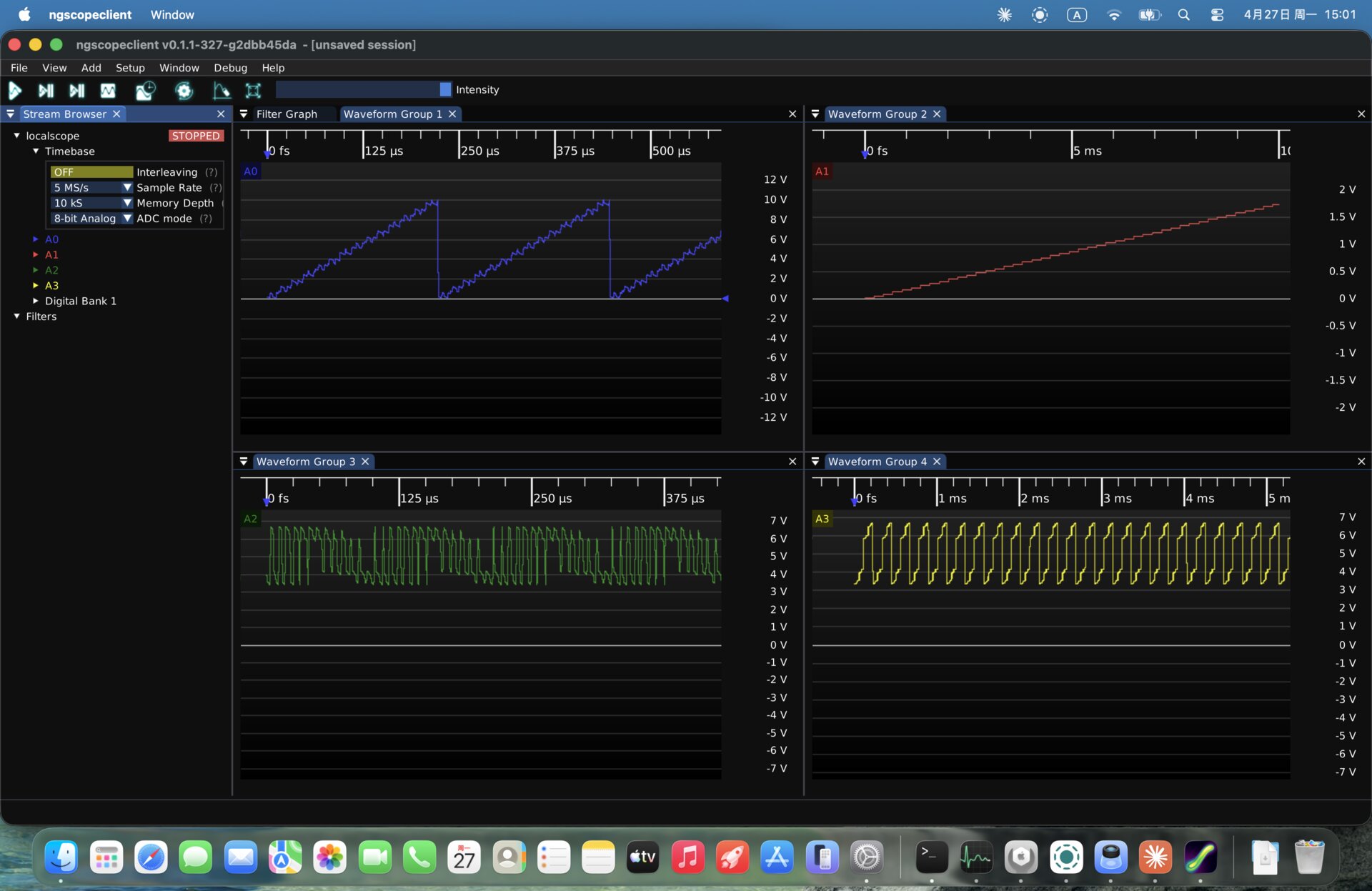
| Unique Features | Beyond standard digital logic analysis, you can enable analog mode in the UI to observe the sampled pins as 8-bit analog signals — one SLogic serves as both an LA and a sampling oscilloscope (requires the ADC kit) |
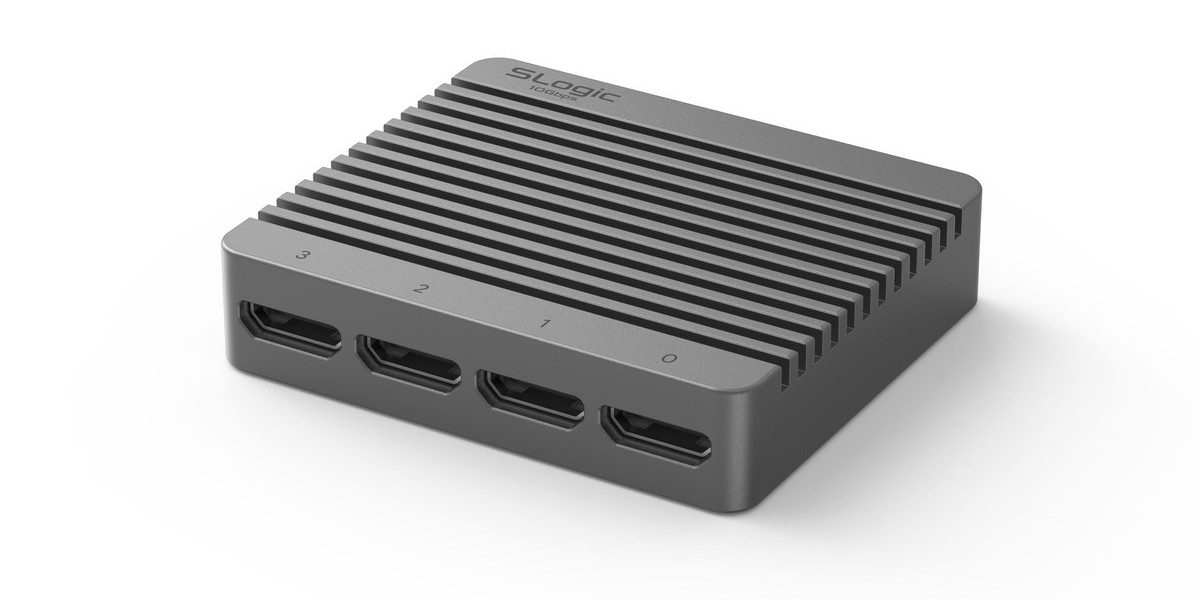
📷 Product Gallery
Download
Get the latest multi-platform host software from the GitHub Release; the download site is a backup mirror:
- GitHub Release (recommended, latest): https://github.com/sipeed/SLogic/releases/latest
- Download site (backup mirror): https://dl.sipeed.com/shareURL/SLogic/ngscopeclient
| Platform | Download Items |
|---|---|
| Windows x64 | ngscopeclient-SLogic-x.y.z-windows-x86_64.exe (run directly) |
| Linux x86_64 | ngscopeclient-SLogic-x.y.z-linux-x86_64.AppImage (make executable and run) |
| macOS (Apple Silicon) | ngscopeclient-SLogic-x.y.z-macos-arm64.dmg (open and run) |
A single portable executable — zero dependencies, no installation, drop it in any directory.
Getting Started
Plug in SLogic (driverless plug-and-play on Windows; on Linux install the udev rule once, see below), run ngscopeclient, then open Add Instrument via File → Add → Oscilloscope and choose from each dropdown:
| Field | Value |
|---|---|
| Driver | SLogic |
| Transport | slogic |
| Path | null |
Click Connect; the channel panel shows the device's channels (16 for SLogic16U3, 32 for SLogic32U3). Launch-and-connect demos per platform:
Windows
Double-click ngscopeclient-*-windows-x86_64.exe to run directly. No driver needed (SLogic is a WinUSB device, plug-and-play); requires Windows 10 1903+, and you do not need the Visual C++ Redistributable.
Linux
Make the AppImage executable, install the udev rule once (otherwise a normal user cannot access the USB device), then run:
chmod +x ngscopeclient-*-linux-x86_64.AppImage
sudo cp 60-sigrok-slogic.rules /etc/udev/rules.d/
sudo udevadm control --reload && sudo udevadm trigger
./ngscopeclient-*-linux-x86_64.AppImage
udev rule file (re-plug the device once after installing)
SUBSYSTEM!="usb|usb_device", GOTO="sipeed_rules_end"
ACTION!="add", GOTO="sipeed_rules_end"
ATTRS{idVendor}=="359f", MODE="0666", GROUP="uucp", TAG+="uaccess", ENV{ID_MM_DEVICE_IGNORE}="1"
LABEL="sipeed_rules_end"
macOS
Download the macOS build and open it to run; if it is blocked on first launch, allow it under System Settings → Privacy & Security.
Usage
Digital Logic Analysis (Default Mode)
Each channel is an independent digital level (High/Low). This is the most common operating mode, and the default when you open the program.
Basic Workflow:
- Select channels: Check the channels you want to capture in the channel panel.
- Set the sample rate: Choose from the dropdown, e.g. 200 MS/s.
- Set the sample depth: How many points to store per capture. 1 MS (1 million points) is usually enough.
- Configure the trigger: In the Trigger panel, pick the trigger source channel and Rising / Falling / Any edge.
- Run:
- Run — continuous acquisition with live display refresh
- Single — capture one frame and stop for a closer look
- Force — capture one frame without waiting for a trigger
The clip above: from setting the sample rate and Channel mode (32ch@200MHz … 4ch@1400MHz) in the Stream Browser to capturing 32-channel digital waveforms.
ngscopeclient supports a software trigger — capture on a condition without a hardware trigger line:
Going Further: Protocol Decoding
Drag the digital waveforms into the Protocol Analyzer to decode UART, I²C, SPI, CAN and other protocols — this is where ngscopeclient outshines traditional sigrok GUIs.
ngscopeclient represents decoding, math and measurements as connectable nodes in a Filter Graph:
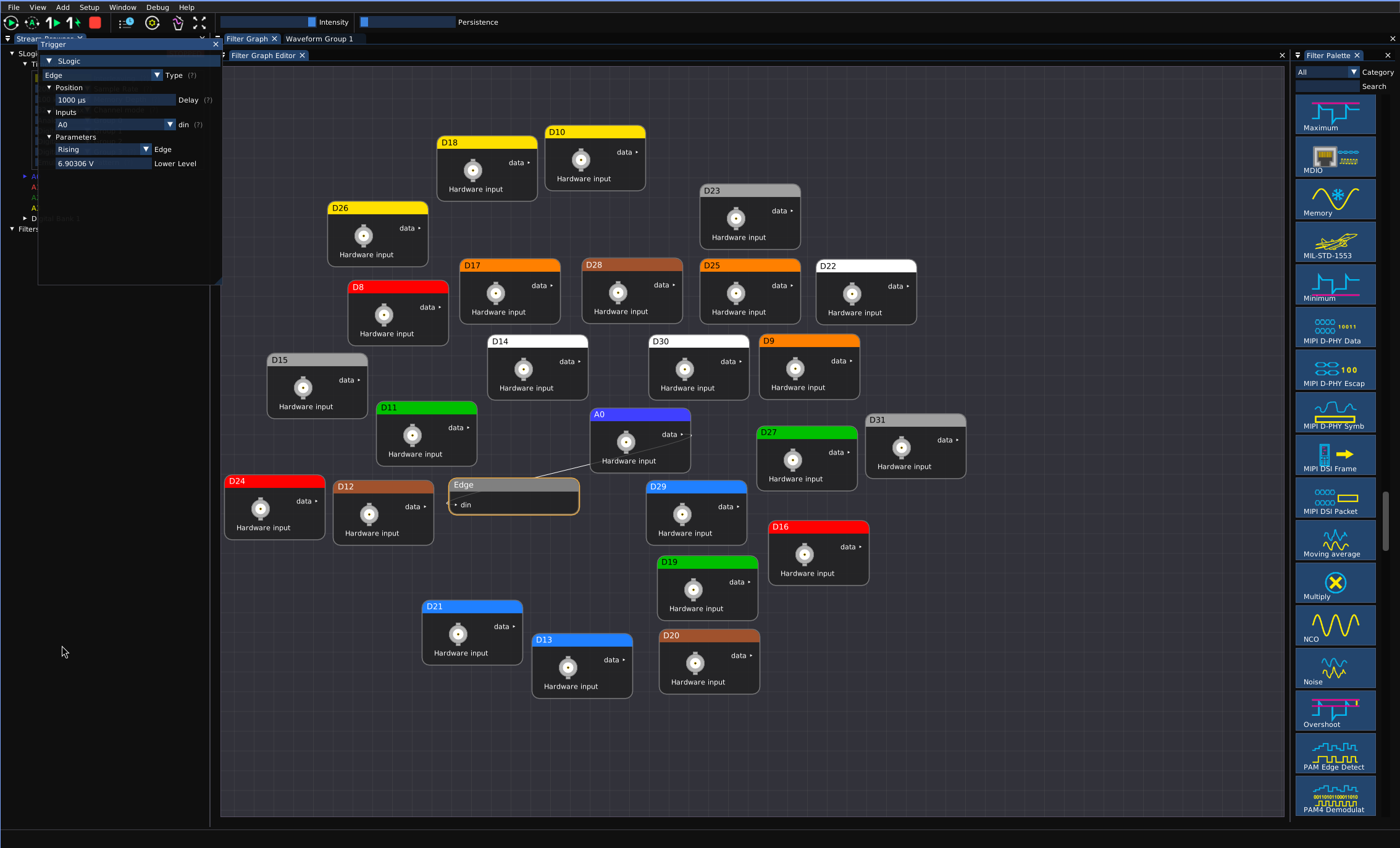
Decoded results are annotated on the waveform:

Using Hardware as a Sampling Oscilloscope (Analog Mode)
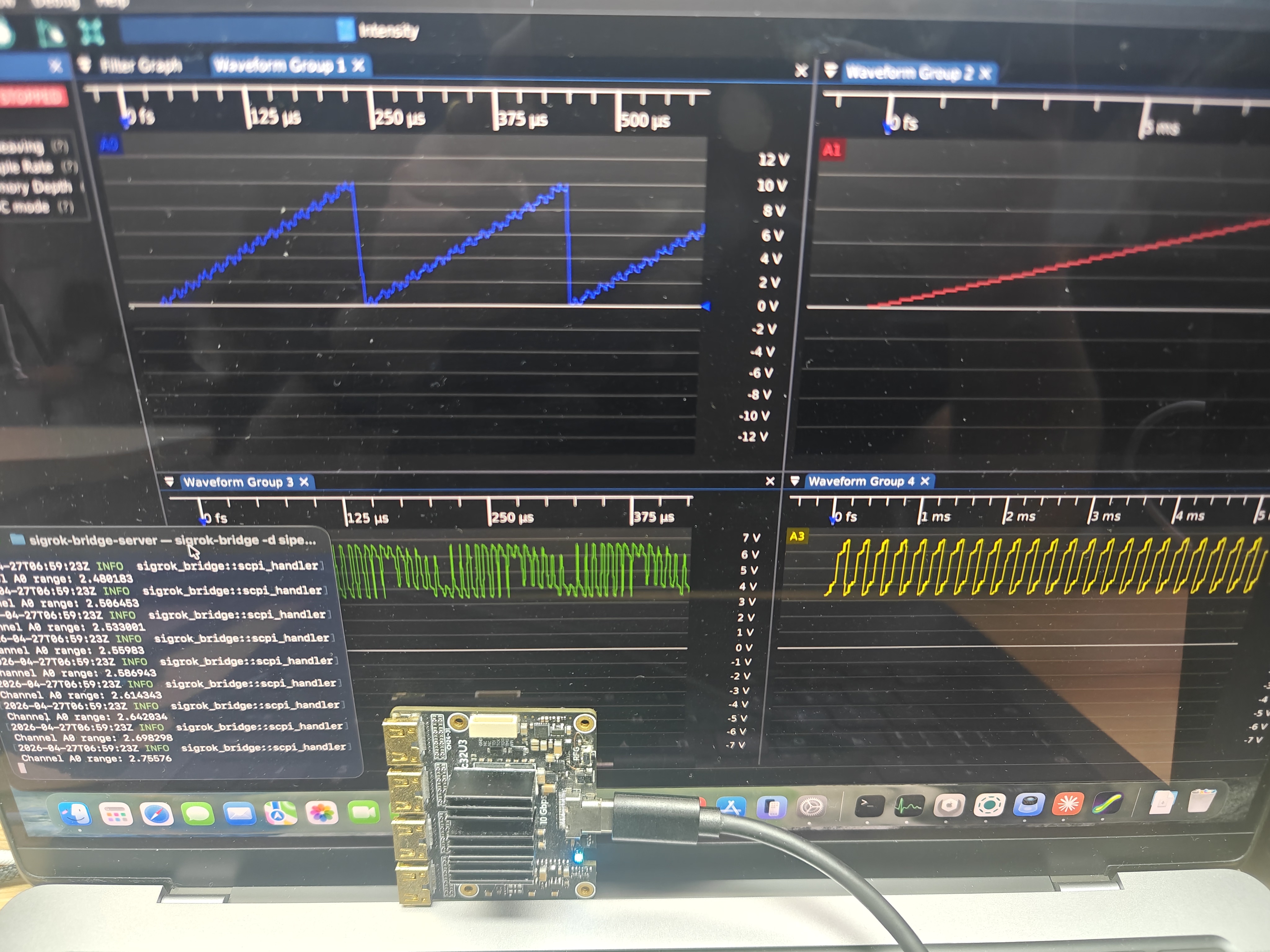
This is one of the project's unique capabilities: treating SLogic's parallel digital samples as an ADC data stream, so a single SLogic serves as both a logic analyzer and an 8-bit sampling oscilloscope. Just enable analog mode in the ngscopeclient UI.
The result: the original D0–D7 / D8–D15 are merged into two 8-bit analog channels (A0, A1); if D16–D23 / D24–D31 are also present, they are merged into four 8-bit analog channels in total (A0, A1, A2, A3). You can then view the waveforms in ngscopeclient just like an analog oscilloscope — scale, axes, automatic measurements, FFT, and other analog-scope features are all available automatically.
The clip above: capturing and software-triggering on channel A0 in analog mode.
Note
⚠️ Analog mode requires hardware with an external ADC module (SLogic16U3 / SLogic32U3); some features are still being refined.
FAQ
"Permission denied" or "LIBUSB_ERROR_ACCESS" on Linux
USB permissions aren't set up. Go back to the Linux section above to install the udev rule, then re-plug the device.
ngscopeclient connects but the channel list is empty
The device wasn't recognized. Check that the hardware is plugged in and that it shows up in Device Manager (Windows) / lsusb (Linux); on Linux, confirm the udev rule is installed and that you've re-plugged the device.
Can I use a logic analyzer from another vendor or model?
The current distribution is adapted only for the Sipeed SLogic series; other models aren't added yet, but may be considered later.
Feedback
If you run into a bug, want a feature, or have any usage questions, email us at support@sipeed.com.
When emailing, please include:
- ngscopeclient version (menu Help → About)
- Hardware model + firmware version
- OS version (Windows / Linux / macOS)
📷 Product Family Showcase: the SLogic hardware, the ngscopeclient screen, and a terminal log — all on one screen.