

 English
 Translate
Two-Factor Authentication
Configure Two-Factor Authentication
Two-factor authentication (2FA) adds an authentication code to password-based sign-in.
Install Google Authenticator or Microsoft Authenticator on your phone. The steps below use Google Authenticator.
Sign in to NanoKVM Go and click the Settings icon in the floating toolbar.

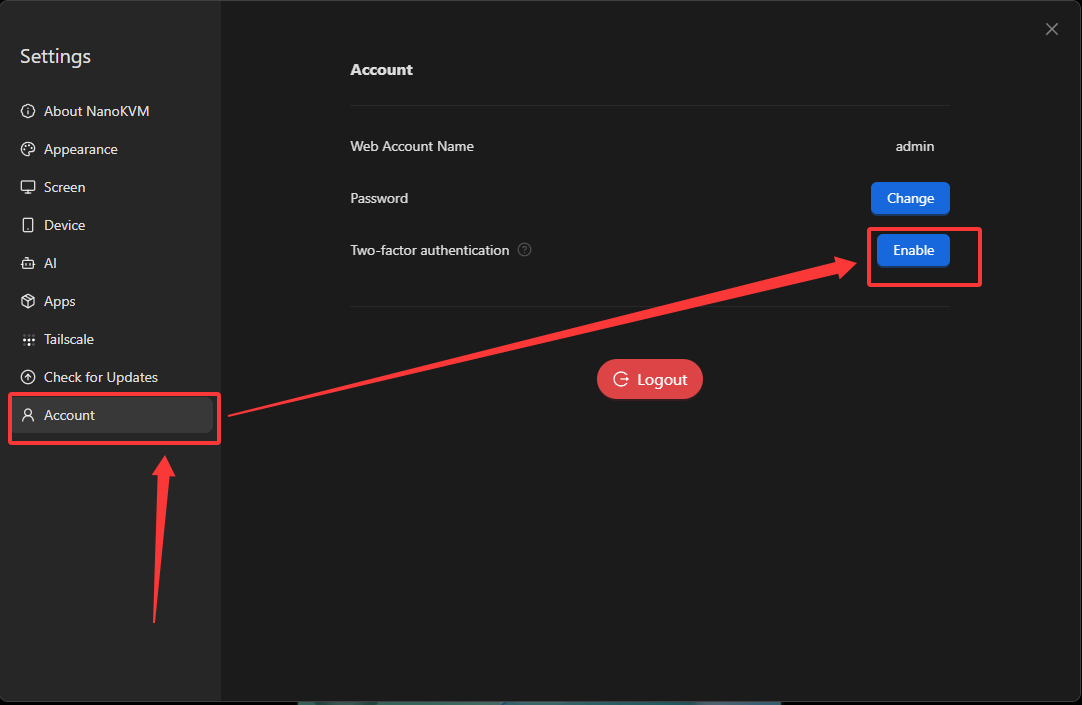
- Select
Account, then clickEnablenext toTwo-factor authentication.
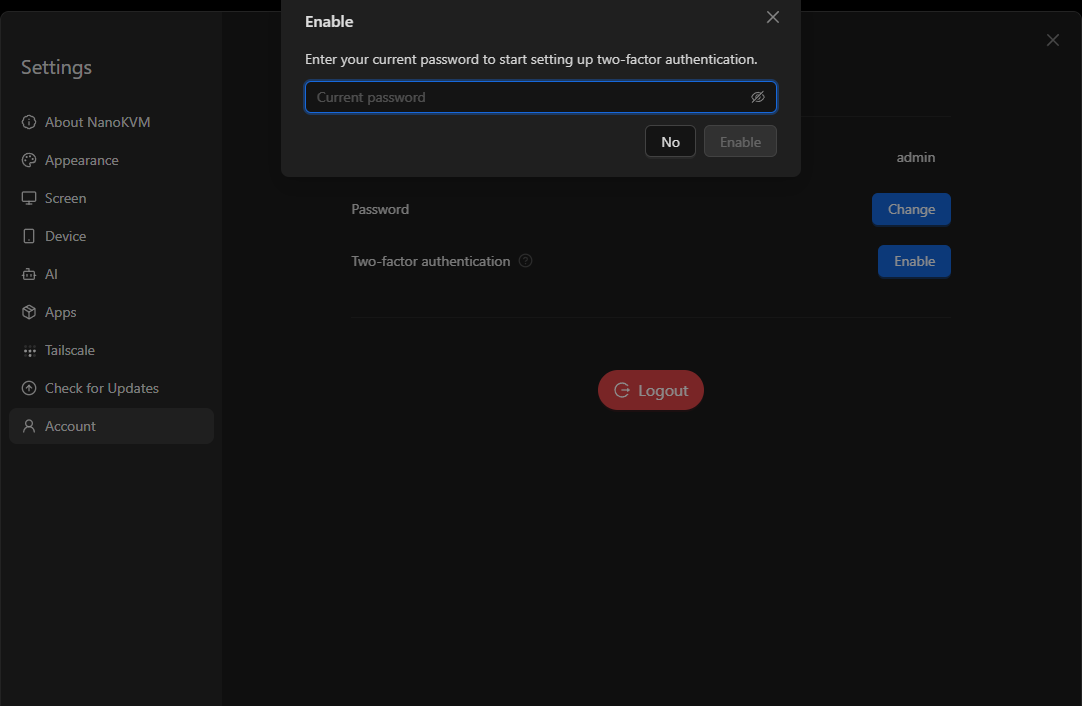
- Enter your current password, then click
Enable.
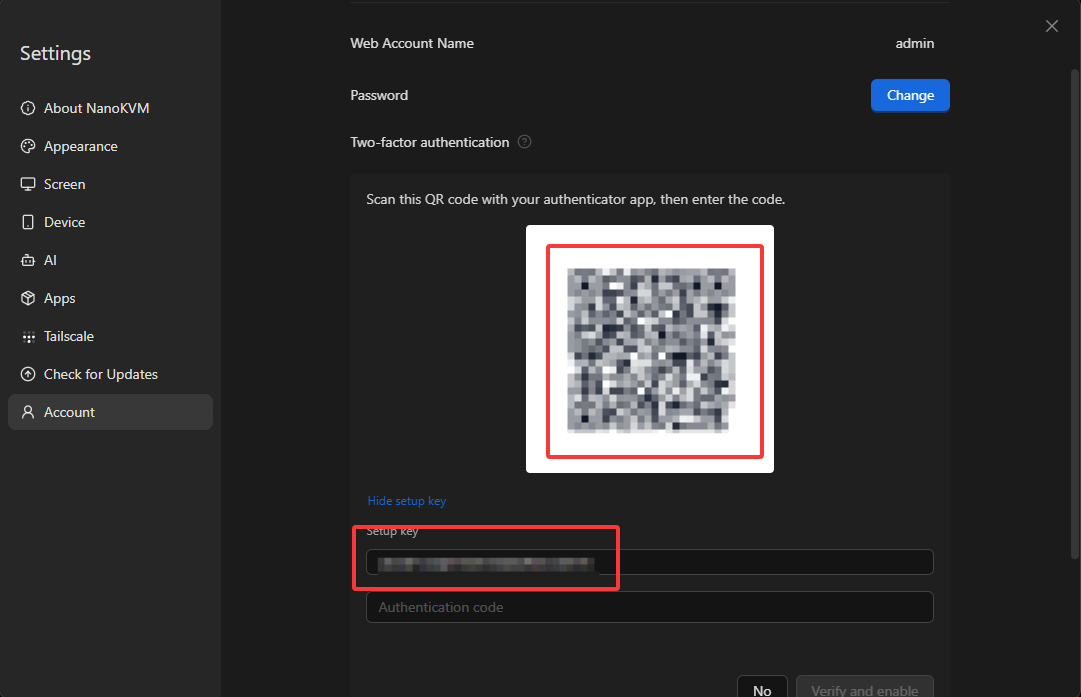
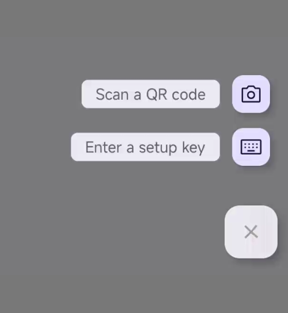
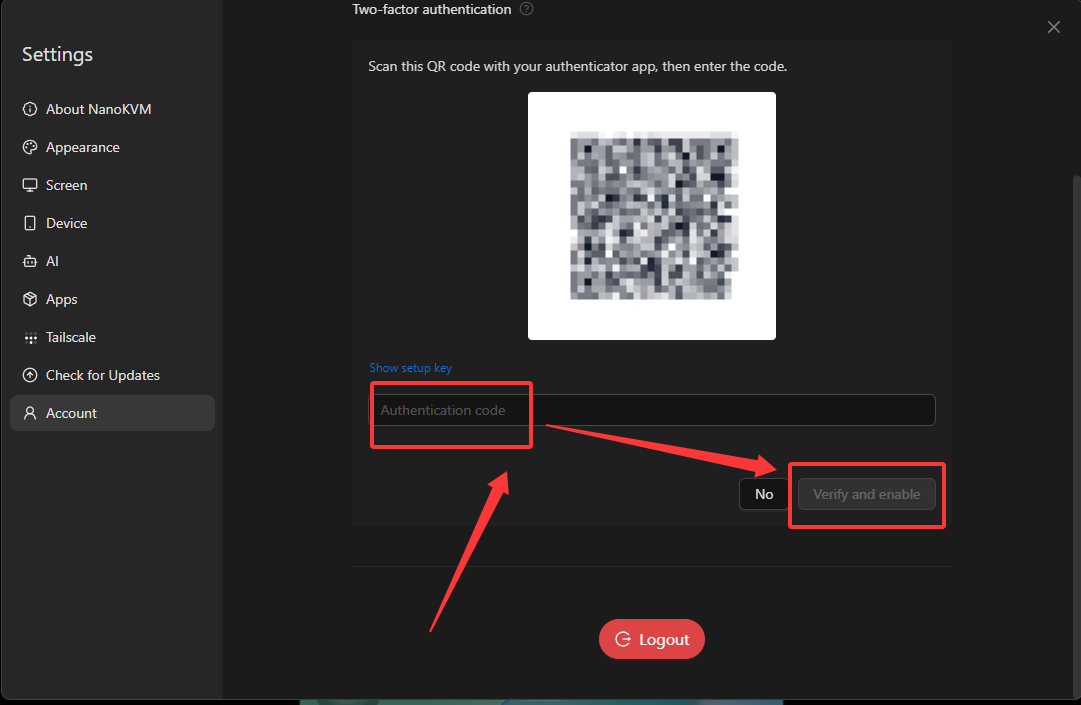
- Scan the QR code with the authenticator app, or enter the setup key manually.
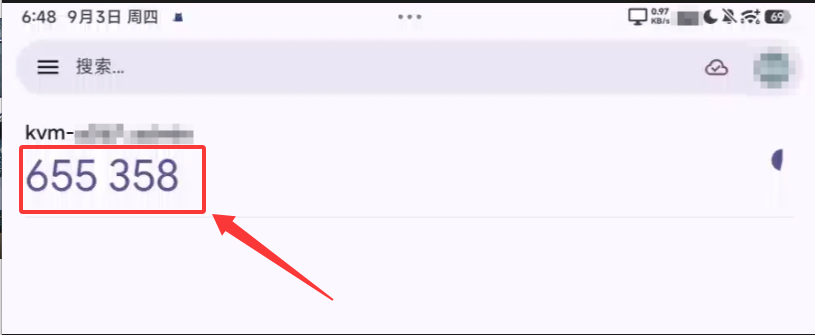
- Enter the current code from the authenticator app, then click
Verify and enable.
- After 2FA is enabled, all sessions are logged out. Sign in again.
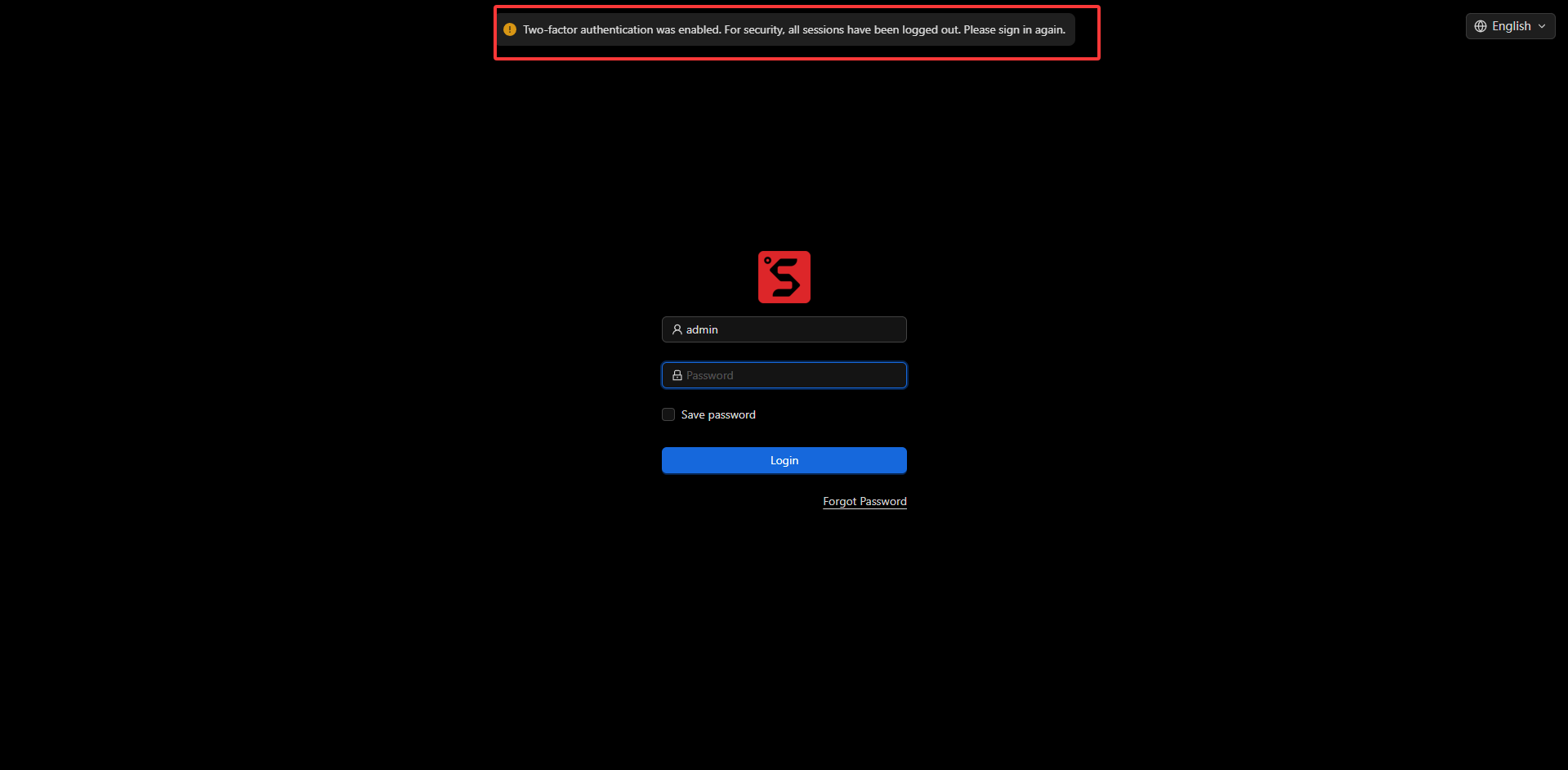
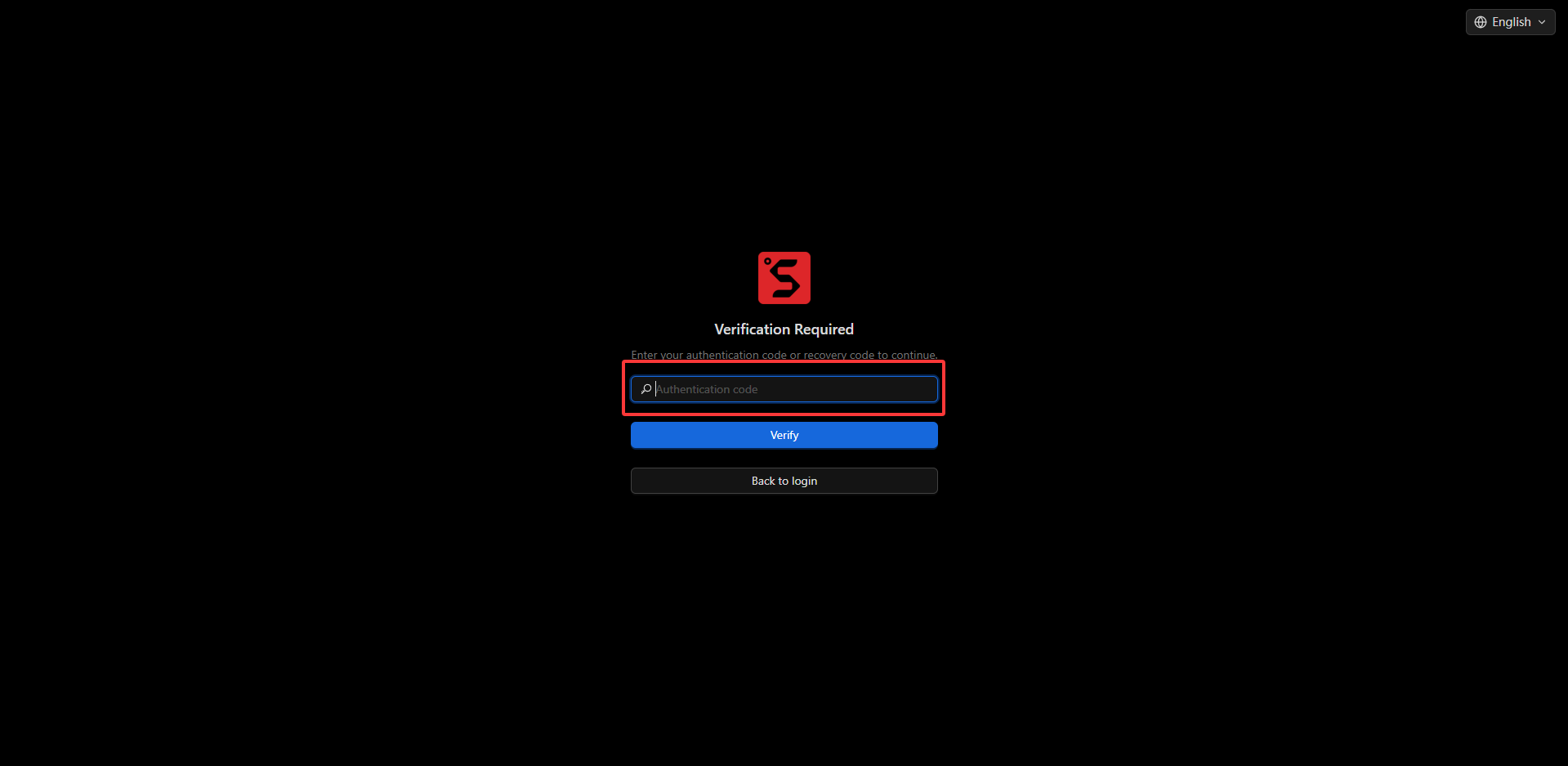
- Enter the current authentication code or a recovery code, then click
Verify.
Configure Recovery Codes
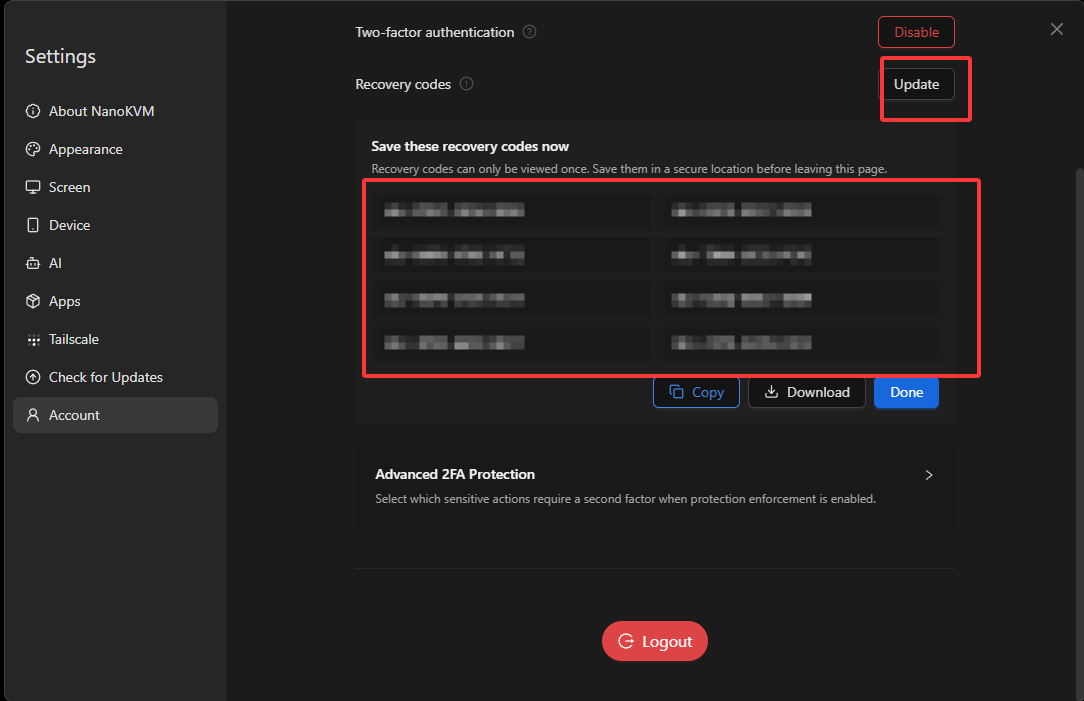
Recovery codes are one-time backup codes for signing in when the authenticator app is unavailable. Save them securely when they are generated.
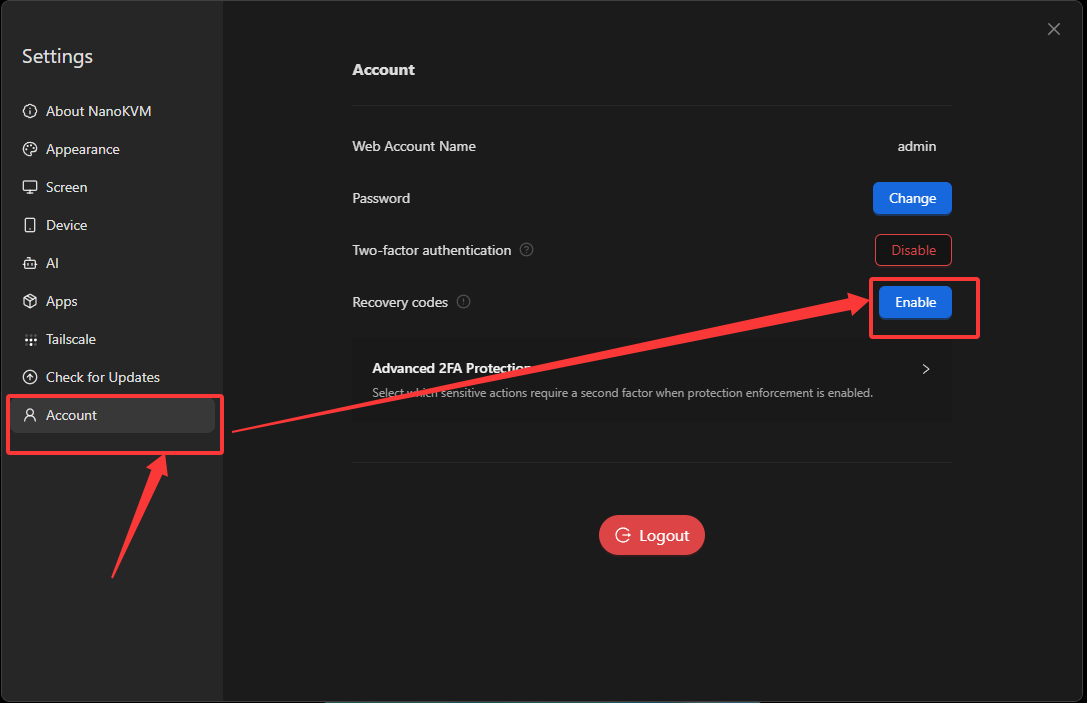
- In
Settings, selectAccount, then clickEnablenext toRecovery codes.
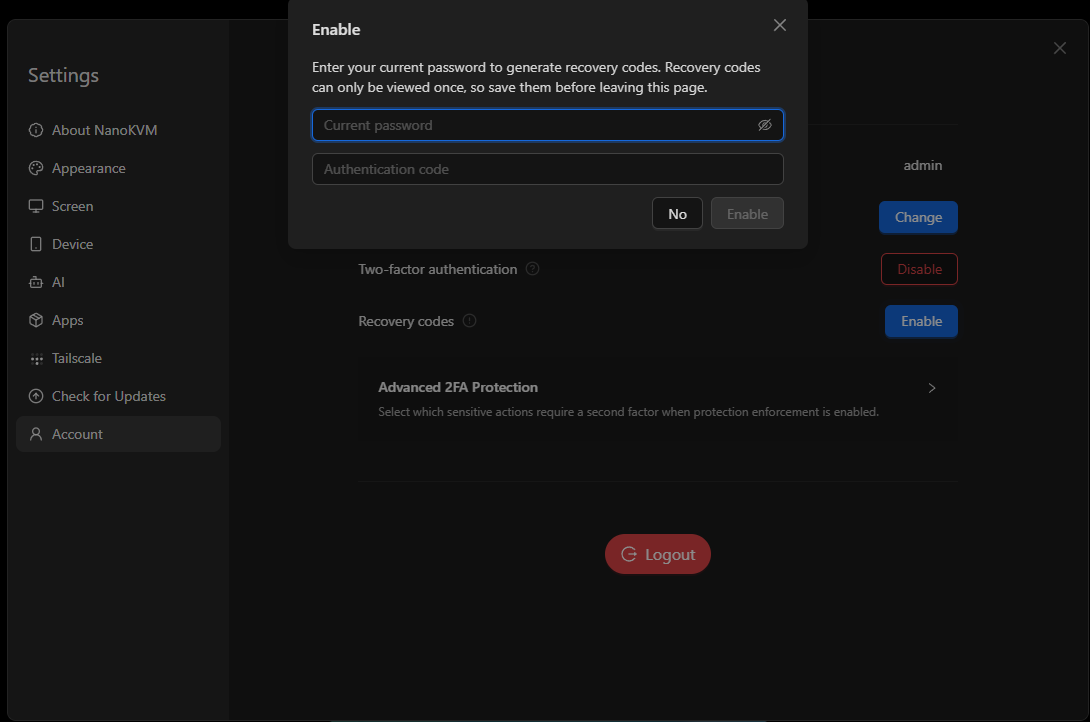
- Enter your current password and authentication code, then click
Enableto generate the recovery codes.
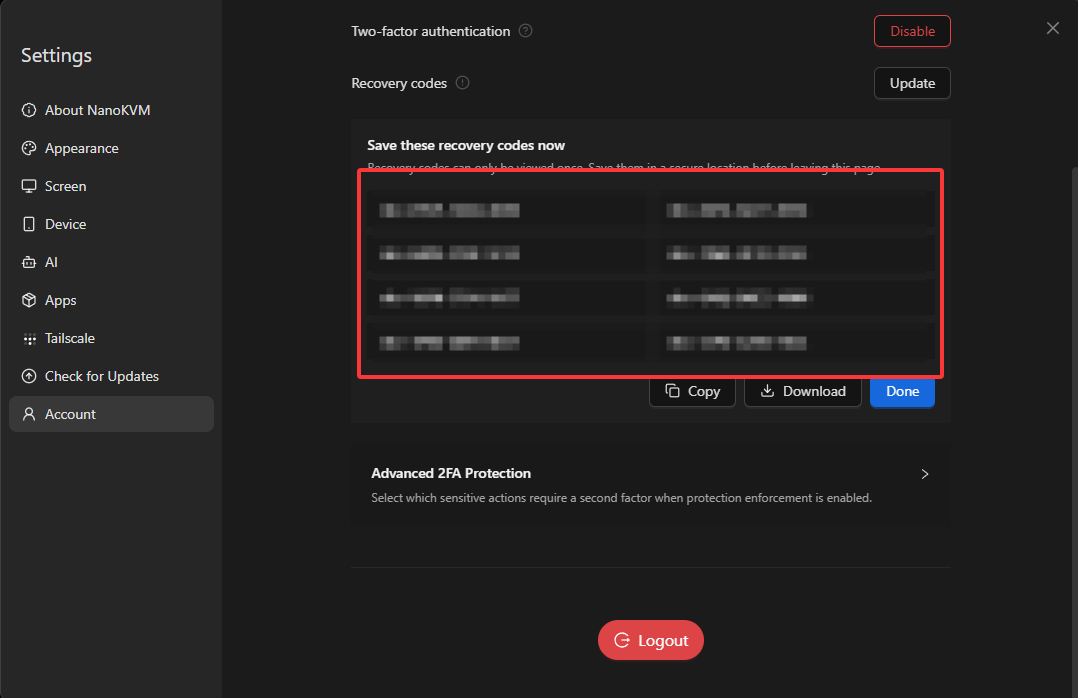
- Click
CopyorDownloadbefore leaving the page, then clickDone.
- If the recovery codes are lost or may have been exposed, click
Updateand save the new set immediately.
Advanced 2FA Protection
Advanced 2FA Protection requires a second-factor code for selected sensitive operations.
- In
Settings, selectAccount, then expandAdvanced 2FA Protection.
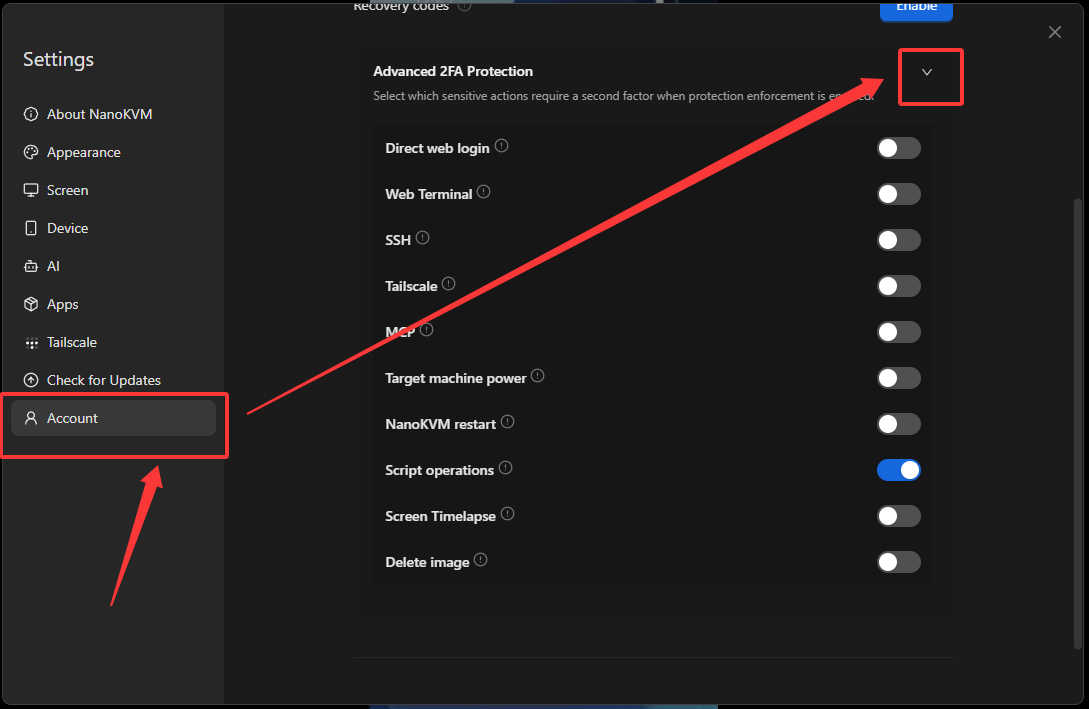
- Enable protection for the operations that should require a second factor. Available options include
Direct web login,Web Terminal,SSH,Tailscale,MCP,Target machine power,NanoKVM restart,Script operations,Screen Timelapse, andDelete image.
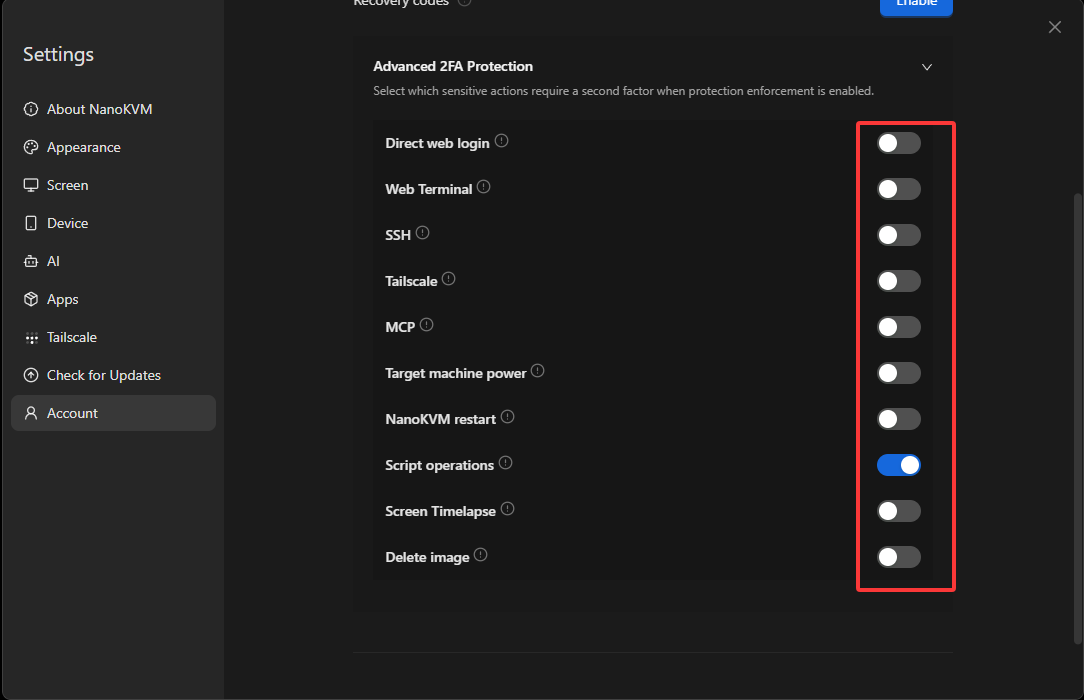
- A blue toggle indicates that protection is enabled; a gray toggle indicates that it is disabled. When enabled, the selected operation requires a verification code before it can proceed.
Disable Two-Factor Authentication
- In
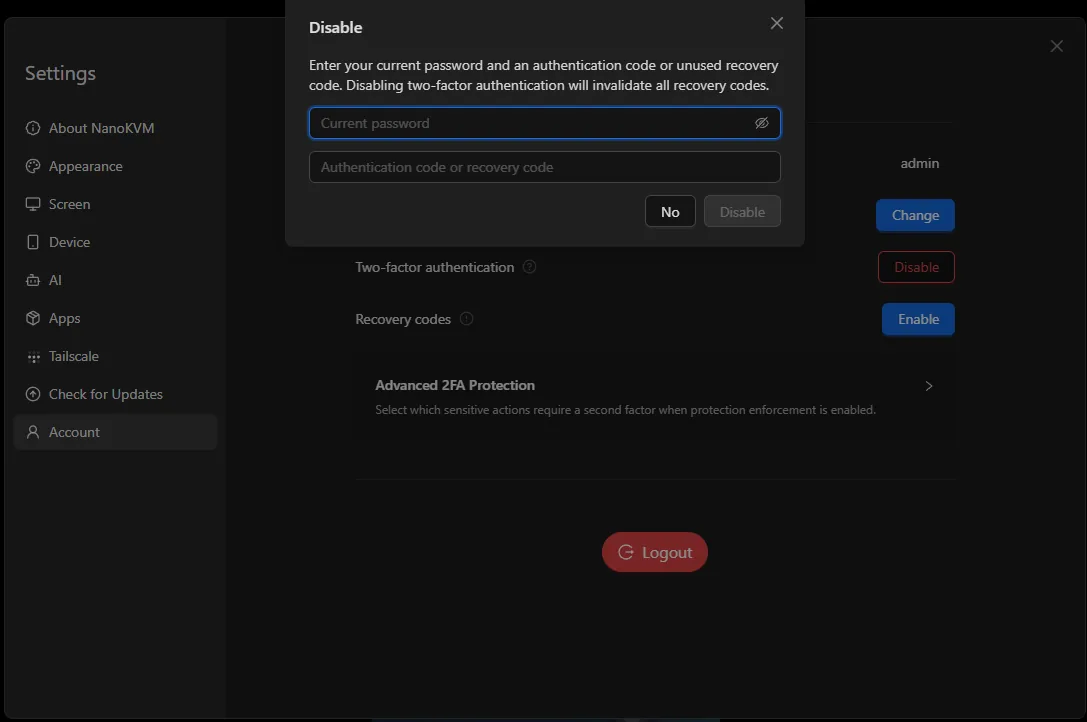
Settings, selectAccount, then clickDisablenext toTwo-factor authentication.
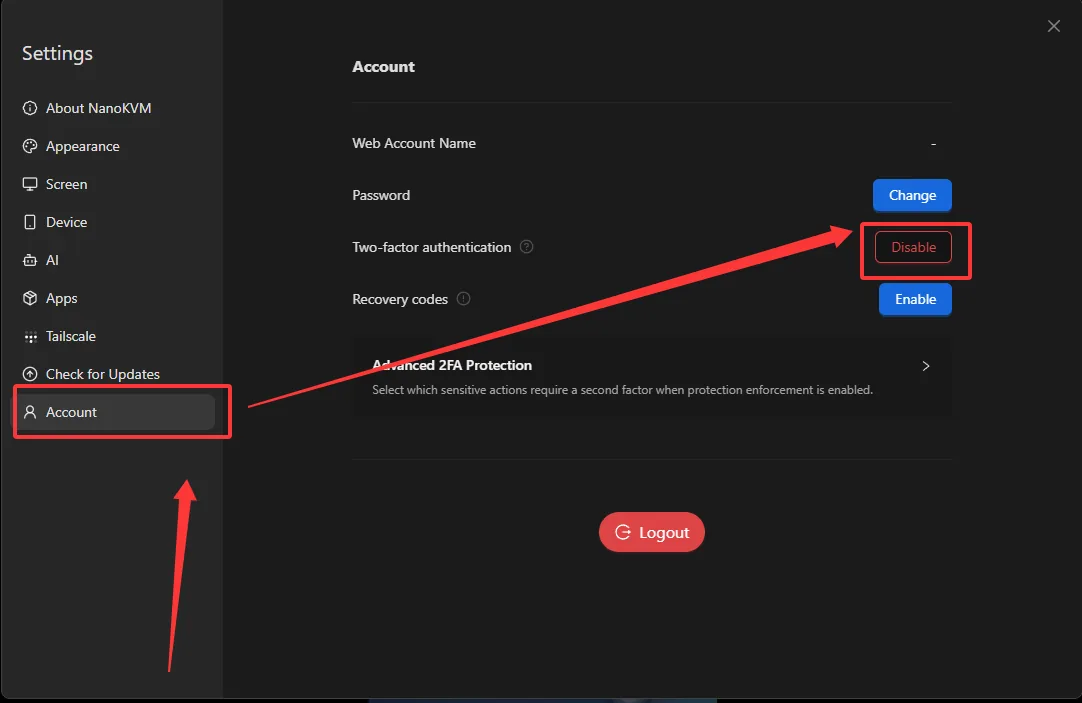
- Enter your current password and either an authenticator-generated code or an unused recovery code, then click
Disable.